Create a QR campaign with Codex or Claude
This worked example takes a small shop from two printed placements to an editable QR campaign. It is a demonstration using example URLs, not a customer case study or a promise of sales results.
You need an active Business or Enterprise plan and an assistant connected through our MCP setup guide. Static codes and guest WiFi codes can also be made with the free website generator.
1. Prepare two real destinations
Start with the example campaign CSV. Replace every example.com URL with a working page you control before generating codes. Keep a separate code for the shop window and counter card so their recorded scans can be compared.
The CSV uses these two columns:
title,url
Shop window,https://example.com/spring-offer?utm_source=shop_window&utm_medium=qr&utm_campaign=spring_offer
Counter card,https://example.com/spring-offer?utm_source=counter_card&utm_medium=qr&utm_campaign=spring_offer
The UTM parameters label incoming visits in your destination website's analytics, if that website collects them. Scan Code Pro records requests to the QR redirect; a scan does not prove a purchase, identify a shopper, or establish that the visitor accepted analytics cookies.
2. Ask your connected assistant to create the campaign
After replacing the sample destinations, paste the CSV with this prompt:
Use Scan Code Pro to create a batch of dynamic QR codes from this CSV. Give me the PNG ZIP and list the saved code IDs, titles, and destinations. Use one request UUID and keep it if you need to retry the identical batch.
The assistant should call create_batch. The result contains a ZIP of PNGs and a manifest. Save the files and code IDs. If your client cannot save the embedded ZIP, ask for each saved code through download_code; file handling depends on the client.
3. Check the exact image before printing
Use Scan Code Pro to validate the Shop window code's PNG at 40 mm total printed width. Explain any warnings. Do not change the code.
The assistant uses validate_print. A passing check is only a digital preflight. Print a sample at the intended size and scan it from the actual viewing distance with more than one phone. Check glare, lighting, the white space around the code, and the final destination.
4. Change the offer without replacing the printed code
Preview changing the Shop window code to this new destination: [your new URL]. Show the current and proposed destinations and wait for my confirmation.
After checking the preview, approve the change. The assistant uses the same saved code ID and the reviewed current destination to apply the update. Its scan URL stays the same, so the existing print continues to work. Creating a new code instead would not update your old print.
5. Review recorded activity
Show the recorded scans for these two saved code IDs over the last seven days. Compare daily counts. Do not describe scans as unique people or purchases.
The assistant uses scan_summary. Keep purchases and sign-ups in your ecommerce or destination-site reporting, and compare them separately. Automated requests may be included in scan counts.
A free alternative: a café or rental WiFi sign
- Open the WiFi QR generator.
- Use your guest network's name, password, and matching security type.
- Download the QR image and scan it with a phone that is not already connected.
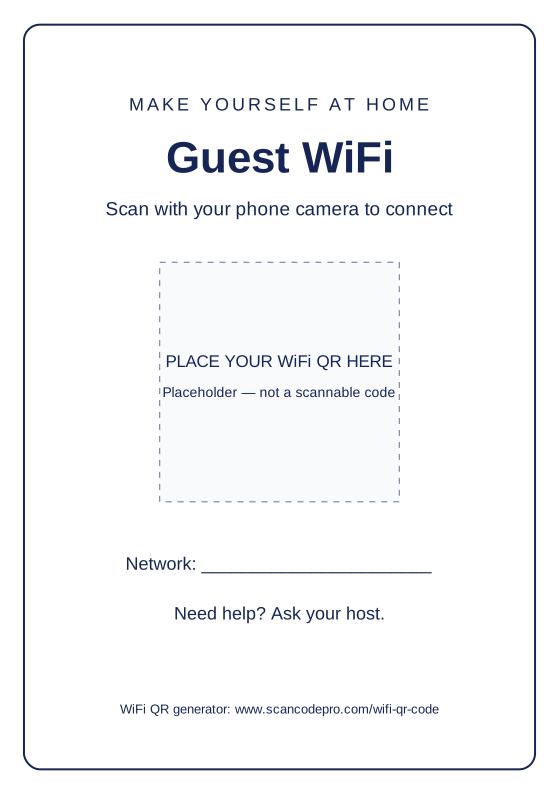
- Download our editable A5 guest WiFi sign (SVG). Open it in an SVG-capable design app and replace the marked placeholder with your actual QR image, preserving the image's white border.
- Replace the network-name line and print at A5. The template itself has no working QR code.
A WiFi code contains the network credentials. Place it where intended guests can see it and use a guest network. If its password changes, regenerate the WiFi code and replace the sign; dynamic URL redirects cannot update credentials already encoded in a WiFi QR.
Create a free WiFi code · Connect your assistant · View Business pricing